
Conform guide

Project from Avid MC

For delivering a project edited in Avid Media Composer to our studio.

Delivery options

There are 2 options to prepare your project

01

Offline editing

Export an AAF from the editing sequence using "Link to media" for both Audio and Video. Copy all original files to a drive for conforming.

02

Online editing

For cases where editing is done with online material ingested into Avid as MediaFiles. In this case, export the sequence as an AAF with the media in a linked folder.
Very important: Apply "commit multicam edits" to the sequence before exporting in order to break down multicam edits.

Reference

Export a reference video

Export a reference QuickTime of the sequence to check that the conform is correct.

  • Burn the master TC plus source TC + Reel for each shot into the image.
  • Also identify VFX shots and optical adjustments for conforming.

Checklist

Sequence requirements

  • Sequence start at 00:59:55:00 and edit start at 01:00:00:00, with a 1-frame picture and sound beep at 00:59:58:00.
  • No hidden tracks or hidden clips in the sequence.
  • Do not use third-party plug-ins. If they are used, make a Video Mixdown of that clip and place it on an upper track without deleting the original clip.
  • Audio used in the sequence must be 48 kHz and 16 or 24 bits.
  • Do not mix different frame rates in the sequence. Convert all media before ingesting it to the project frame rate.

Very important

File and folder naming

It is very important to use clean naming for everything related to the project, both files and related folders:

  • As a general rule, REEL names or ingested file names should not exceed 32 characters.
  • Do not use special characters, spaces, accents, punctuation symbols, parentheses, slashes (/) or the letter Ñ.
  • Use only upper or lower case letters, numbers, hyphen ( - ) and underscore ( _ ).

AAF settings

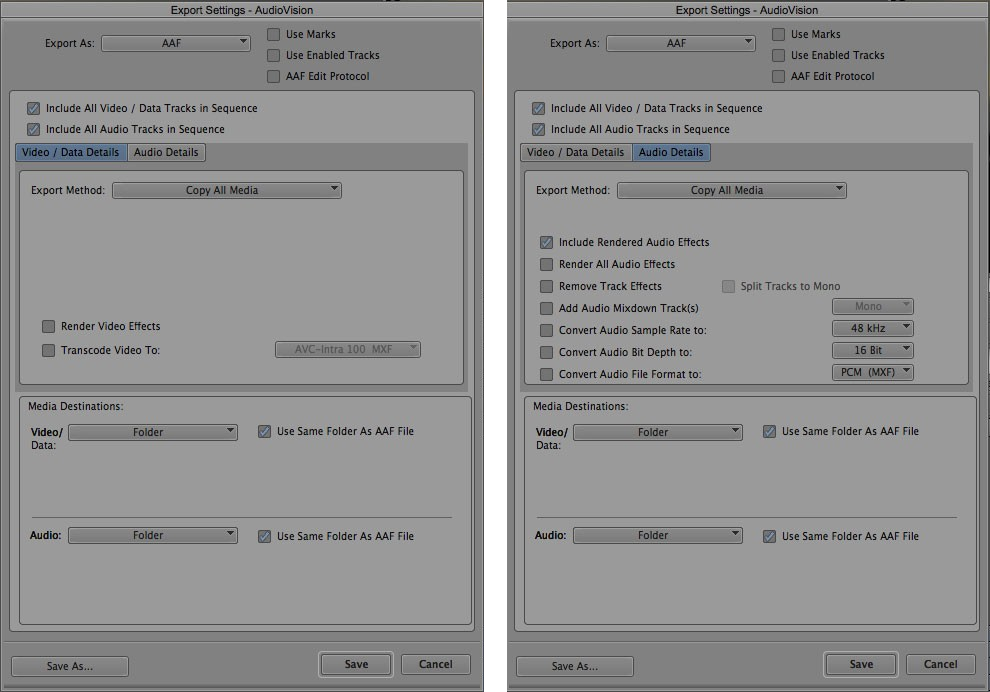
If you are sending the media used in the AVID project, export it this way

Avid AAF export settings reference with Video Details and Audio Details
  • If copying all media, select "Copy All Media".
  • If consolidating the media, apply 10-second handles.

In both cases, remember to include all AMA-linked material and all external graphic files related to the project, preserving the folder tree used during editing. For safety, also bring a copy of the Avid project.